
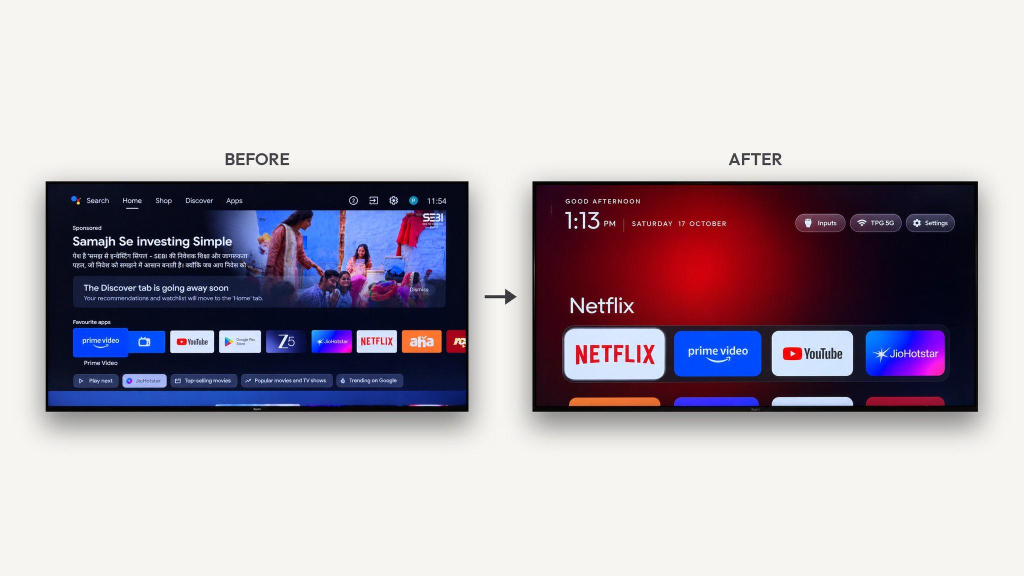
My Android TV had started to feel heavier than it needed to be. The home screen was full of recommendations and manufacturer content, while I mainly wanted quick access to the apps I use and the HDMI inputs I need.
I wanted a cleaner interface without rooting the TV or permanently deleting system apps. My first thought was using an existing launcher APK. Since then, the project has moved forward: TV Detox now has its own launcher APK and a set of scripts and documentation to help with installation, device checks, debloating, and rollback.
The current project is available here: TV Detox on GitHub.
Important: TV Detox changes Android TV package and launcher settings. Compatibility varies by TV brand, model, and Android version. Read the README and warnings first, understand every change, and keep a way to reconnect over ADB. You are responsible for changes made to your device.
What TV Detox does
TV Detox combines a lightweight home screen with tools and instructions for cleaning up an Android TV. Its aim is to reduce clutter while keeping the setup understandable and reversible.
The project includes:
- Its own launcher APK: a simple, ad-free home screen focused on your apps, HDMI inputs, and a clock.
- Installation and rollback scripts:
install.shinstalls the launcher and handles the home-screen change;undo.shhelps restore the original launcher setup.
What you need
- An Android TV or Google TV. Support and behaviour differ across models.
- A computer on the same local network as the TV.
- Android Debug Bridge (ADB), included in Google's official SDK Platform-Tools.
- Your TV remote, to approve the debugging prompt and test the interface.
- The current TV Detox repository, including its README, APK/release files where provided, scripts, and documentation.
You do not need root access for the documented ADB setup. The project uses Android's package manager to disable selected apps rather than permanently uninstalling system packages.
1. Read the current README first
Start with the TV Detox README. It is the source of truth for the current install command, supported options, warnings, and rollback process.
Do not rely on an old command from this guide (in case) if it conflicts with the repository. The installer and its safety checks may evolve, and TV behaviour is not identical across manufacturers.
2. Enable developer options and debugging
On many Android TV devices, the general route is:
- Open Settings on the TV.
- Go to Device Preferences or System.
- Open About.
- Select Build repeatedly—often seven times—until developer options are enabled.
- Return to Settings and open Developer options.
- Enable the available ADB, USB, or network debugging option.
Menu labels vary. Follow your TV manufacturer's instructions if these steps do not match your device.
Only approve ADB access from a computer you trust. Debugging gives that computer control over parts of the TV, so turn it off when setup and testing are complete.
3. Connect the computer to the TV
Find the TV's IP address in its network settings. The computer and TV should be on the same local network. Depending on the Android version, the TV may use the older ADB-over-network connection or Android's Wireless debugging pairing flow.
Check the current README for the connection method appropriate to your setup. Do not assume that every TV uses port 5555; Wireless debugging can display a different port, and that port can change after a restart.
Once connected, verify that ADB sees the TV as authorised before running any project script. If the device appears as unauthorized, check the TV screen for an approval prompt.
4. Review installed apps before debloating
Package names can be misleading, and the same feature can be implemented differently by different TV makers. TV Detox includes a planning script that lists apps and assigns a verdict without changing the device:
never— a critical component or an app that Android keeps running; leave it enabled.keep— may provide a feature you use, such as casting, search, or Live TV.safe— commonly optional apps, sponsored content, or vendor extras that may be suitable to disable after review.review— the role is uncertain; leave it enabled unless you can verify what it does.
Treat these as guidance, not universal guarantees. A package that is optional on one model may support a required feature on another. When unsure, leave it on.
Components that deserve extra care
Do not disable core services for settings, System UI, Bluetooth and remote control, keyboard input, package installation, TV inputs, or Google Play services/framework. Keep casting components enabled if you cast from a phone. On OLED TVs, keep the screensaver enabled to reduce the risk of image retention or burn-in.
The project documentation includes examples of packages and explains why they should be kept, reviewed, or disabled only when a feature is not used. Read that documentation instead of copying a long package list from a different TV.
5. Install the TV Detox launcher
The current repository includes the project's own launcher APK and installation files. Use the APK or release artifact provided by the repository rather than relying on an unrelated third-party launcher APK.
For the script-based setup, follow the exact instructions in the README. The general flow is:
- Download or clone the current repository.
- Make sure ADB is available in the terminal you are using.
- Review the install script and its prompts before running it.
- Run the documented
install.shcommand with your TV's address and, if desired, your chosen app list. - Read each prompt carefully, especially any prompt about turning off the existing launcher.
- Test the Home button and verify that TV Detox opens as expected.
The installer can use the project's built or released APK according to the repository instructions. If you build the launcher yourself, the README documents the build workflow and development requirements.
The home screen is designed to keep the interface simple: your selected apps, available HDMI inputs, and a clock. The README also describes using the remote to manage tiles, including moving, replacing, or removing apps from the home screen and adding apps back. Removing an app from the home screen is not the same as disabling or uninstalling it.
Important Google TV warning
On some Google TV devices, turning off the stock launcher can cause startup problems or repeated restarts. The current project README specifically warns against disabling the original home screen on Google TV and Chromecast with Google TV unless you understand the risks and have a reliable recovery path. The installer has safeguards for Google TV, and an opt-in override may exist, but do not use an override casually.
If the installer leaves the original launcher enabled on your device, follow that behaviour unless you have checked the README and understand the device-specific implications. A slightly less customised home screen is better than a TV that cannot start normally.
6. Debloat gradually, not in one large batch
The package cleanup is a separate decision from installing the launcher.
Use a cautious process:
- Review the cleanup list and documentation.
- Choose only apps you recognise and do not use.
- Disable a small group rather than a large batch.
- Test the TV before continuing.
- Restart when appropriate and test again.
- Record every package changed and how to re-enable it.
TV Detox's documented approach is to disable apps rather than uninstall system packages. Android's pm disable-user action can generally be reversed with pm enable, while uninstalling a system app can make recovery harder. Follow the project scripts and documentation for the specific action you are taking.
Do not assume that a command succeeded just because it printed a success message. Some persistent system apps may return after a reboot, and a package's role may not be clear from its name.
7. Test the TV after setup
After installation or a debloating batch, check the functions you actually use:
- The TV starts normally and does not get stuck at its logo.
- The Home button behaves as expected.
- The TV Detox launcher displays the intended apps.
- Streaming apps open and play content.
- HDMI inputs and Live TV work.
- The remote, Bluetooth accessories, Wi-Fi, volume, and picture settings work.
- Casting works if you use it.
- Screensaver behaviour is still appropriate for your display, especially OLED.
- Any dedicated remote buttons you rely on still work.
Some remote shortcuts are handled by the manufacturer's original home screen or another vendor app. If a button stops working after a change, re-enable the most recently disabled related package and test again rather than disabling more apps.
TV startup behaviour is sometimes controlled by a manufacturer's own setting rather than by the launcher. If the TV opens Live TV or an HDMI input at boot, check the TV's settings for startup input or last-used input. TV Detox cannot guarantee a fixed startup input on every model.
8. Undo changes if something goes wrong
The project includes undo.sh for restoring the original launcher setup. Use the command and connection format shown in the current README:
bashsh resotore.bat <TV_IP>
The undo script restores the launcher changes that the installer tracks. It does not necessarily reverse package changes you made separately by hand. Keep a record of those packages and re-enable them individually using the documented ADB/package-manager method.
If the screen is blank or the TV is stuck restarting but ADB still connects, use the recovery steps in the README. Depending on the device, you may be able to reconnect during startup and re-enable disabled packages or run the undo script. If ADB cannot connect, consult the manufacturer's recovery instructions; a factory reset may be a last resort.
Do not proceed with additional changes while the TV is unstable. Restore a working launcher and the last packages you changed before trying again.
9. Turn debugging off when finished
After you have tested the setup and no longer need ADB:
- Open Settings → Developer options on the TV.
- Turn off USB, ADB, network, or Wireless debugging as applicable.
- If available, revoke debugging authorisations for previously trusted computers.
- Disconnect the current ADB session on the computer.
Turn debugging back on only when you need to update or undo the setup, then turn it off again afterward.
Final thoughts
The goal is not to disable as many apps as possible. It is to make the TV easier to use while keeping the system stable and recoverable. A simple launcher helps, but the safer process matters just as much: inspect first, make small changes, test the features you need, and keep a rollback path.
If you try TV Detox, read the README and warnings before making changes, and share device-specific findings through the repository so the documentation can improve.
References
This guide summarises the current project documentation and general setup flow. Android TV behaviour varies by model and firmware. Follow the repository's latest README, verify each change on your own device, and use the software at your own risk.